Menu


Start Free $129 Lifetime
Why is it the #1 bulk uploader?
- Insanely fast!
- Maintains folder structure.
- 100% automated upload.
- Supports RAW files.
- Privacy default.
How can you get started?
Download PicBackMan and start free, then upgrade to annual or lifetime plan as per your needs. Join 100,000+ users who trust PicBackMan for keeping their precious memories safe in multiple online accounts.
Trusted by users in 125+ countries.
“Your pictures are scattered. PicBackMan helps you bring order to your digital memories.”

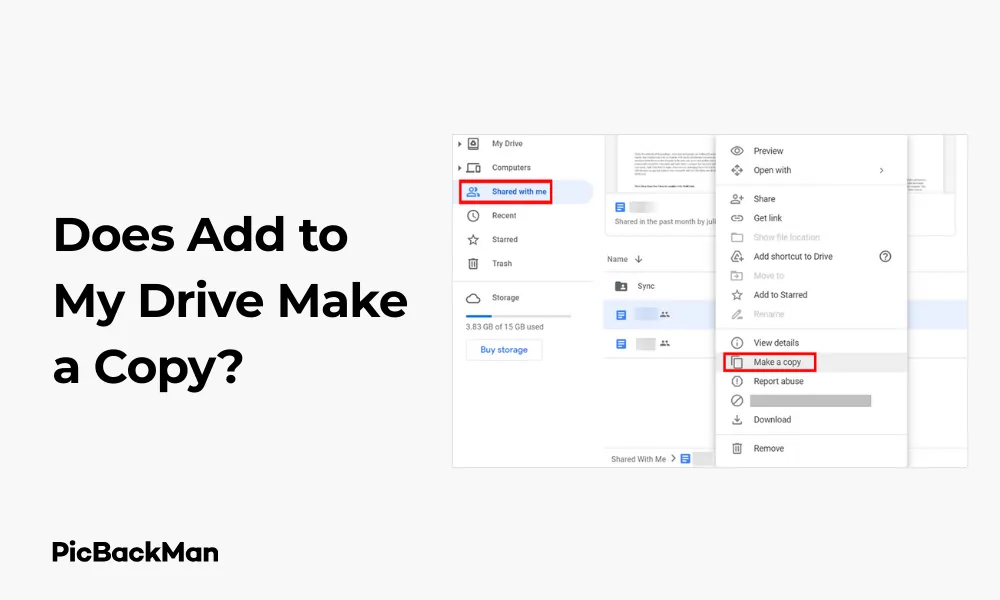
Does Add to My Drive Make a Copy?

If you're a Google Drive user, you've probably seen the "Add to My Drive" option and wondered exactly what happens when you click it. One of the most common questions people ask is whether this action creates a duplicate file or simply adds a reference to the existing one. This comprehensive guide will explain everything you need to know about how the “Add to My Drive” feature works, how it differs from making actual copies, and how to manage your Google Drive storage effectively.
What Happens When You Click "Add to My Drive"?
When you click "Add to My Drive" on a file that has been shared with you, Google Drive does not create a physical copy of that file. Instead, it creates a shortcut or reference to the original file in your Drive structure. This is an important distinction with several implications:
- The file still belongs to the original owner
- No additional storage space is used in your account
- Any changes made to the file will be visible to everyone with access
- If the owner deletes the file, you'll lose access to it
Think of “Add to My Drive” as creating a bookmark rather than making a photocopy. The file appears in your Drive organization, but it's still the same single file that exists in the owner's storage.
Add to MyDrive vs. Make a Copy: Key Differences
Understanding the difference between adding to your Drive and making an actual copy is crucial for managing your files properly:
| Feature | Add to My Drive | Make a Copy |
|---|---|---|
| Storage space used | None (on your account) | Yes (counts against your quota) |
| Ownership | Remains with original owner | You become the owner |
| Changes visible to others | Yes (shared file) | No (your private copy) |
| Access if original owner deletes | Lost | Maintained (independent file) |
How to Actually Make a Copy in Google Drive
If you want to create a true copy of a file that will be independent of the original, you need to use the “Make a copy” function instead:
- Right-click on the file you want to copy
- Select "Make a copy" from the dropdown menu
- The new copy will appear in your Drive with “Copy of” added to the filename
- This new file belongs to you and counts against your storage quota
Practical Examples: When to Add vs. When to copy
Let's look at some real-world scenarios to help you decide which option is best:
Scenario 1: Collaborative Work Project
Your team is working on a marketing presentation where everyone needs to contribute. In this case, using "Add to My Drive" makes sense because:
- Everyone needs to see the latest changes
- The file should stay synchronized
- You want to avoid multiple versions floating around
Scenario 2: Template Document
Your colleague shared a perfectly formatted invoice template that you want to use for your clients. Here, "Make a copy" is the right choice because:
- You'll be filling it with different information each time
- You don't want your changes to affect the original template
- You need to maintain your own version even if they delete the original
Scenario 3: Reference Material
Your manager shared important company guidelines you need to refer to occasionally. "Add to My Drive" works well here because:
- You only need reading access
- You want to see any updates made to the guidelines
- You don't need to edit the document
Storage Implications: How "Add to My Drive" Affects Your Quota
One of the biggest advantages of using “Add to My Drive” instead of making copies is the storage efficiency. Google Drive provides 15GB of free storage shared across Gmail, Google Drive, and Google Photos. When you're approaching this limit, understanding how file ownership affects storage becomes crucial.
Files That Count Against Your Storage
- Files you own (created or copied by you)
- Items in your trash (until permanently deleted)
- Google Docs, Sheets, Slides, and Forms you own (although these don't count against storage)
- Photos and videos in Google Photos (depending on quality settings)
Files That Don't Count Against Your Storage
- Files shared with you that you've added to your Drive
- Shared files you've organized in your Drive structure
- Google Docs, Sheets, Slides, and Forms created by others
This means you can add hundreds or thousands of shared files to your Drive organization without using any of your storage quota, as long as you don't make copies of them.
Common Confusion Points About "Add to My Drive"
Many users misunderstand what "Add to My Drive" does, leading to confusion and sometimes data loss. Let's clear up some common misconceptions:
Misconception 1: "Adding to My Drive gives me ownership"
When you add a file to your Drive, you're essentially creating a pointer to the original file. You don't become the owner, and if the original owner deletes their file, your pointer will lead nowhere. This is a crucial distinction that many users miss.
Misconception 2: "Adding to My Drive protects the file"
Some users believe that adding a file to their Drive protects it from deletion by others. This isn't true - if the owner deletes the file, it's gone for everyone who had it added to their Drive.
Misconception 3: "Removing from My Drive deletes the file"
The opposite misconception is also common. When you remove a shared file from your Drive, you're only removing your pointer to it. The original file remains intact for the owner and other users who have access.
How to Check if a File is a Copy or Just Added to Your Drive
It's important to know whether you own a file or just have it added to your Drive. Here's how to check:
Method 1: Check the Owner
- Select the file in Google Drive
- Click the “i” information icon in the top-right corner
- Look at the "Owner" field - if it's someone else's name, you've just added it to your Drive
Method 2: Look for Visual Indicators
Google Drive provides visual cues about file ownership:
- Files you own have no special icon
- Files shared with you show a person icon
- Files you've added to your Drive from shared items show a shortcut arrow icon in some views
Method 3: Check Storage Impact
Another way to verify is to check if the file is counting against your storage:
- Go to drive.google.com
- Click on "Storage" in the left sidebar
- Files you own will appear in the storage breakdown
- Files you've added but don't own won't appear here
Best Practices for Managing Shared Files in Google Drive
Now that you understand how "Add to My Drive" works, here are some best practices for managing your files effectively:
1. Organize Shared Files in Folders
Create a dedicated folder structure for shared files you've added to your Drive. This helps you keep track of what belongs to you versus what you're just accessing.
2. Make copies of critical files
If a shared document contains information you absolutely cannot lose access to, make a copy. This ensures you'll have it even if the original owner deletes it or removes your access.
3. Use Color Coding
Google Drive allows you to color-code folders. Consider using different colors to distinguish between folders containing files you own and those containing shared files you've added.
4. Regularly Review Shared Files
Periodically review the files shared with you and remove from your Drive those you no longer need. This keeps your Drive organized without affecting the original files.
5. Communicate with File Owners
If you're relying on shared files for important work, communicate with the owners about their plans for those files. This can prevent unexpected loss of access.
Advanced Tips for Power Users
If you're a heavy Google Drive user, these advanced tips will help you manage shared files more effectively:
Using Google Drive Shortcuts
In 2020, Google introduced Drive shortcuts as a more powerful alternative to “Add to My Drive.” Shortcuts allow you to:
- Place references to the same file in multiple folders
- Create shortcuts to folders (not just files)
- Maintain access even if the file is moved (as long as you still have permission)
To create a shortcut:
- Right-click on a file or folder
- Select "Add shortcut to Drive"
- Choose the location where you want the shortcut to appear
Using Google Takeout for Backup
If you're concerned about losing access to important shared files, consider periodically backing them up using Google Takeout:
- Go to takeout.google.com
- Select only "Drive" from the list of products
- Choose which folders to include
- Export and download your files
This creates actual copies of all accessible files, giving you a safety net.
Using Drive File Stream for Teams
For organizations, Google's Drive File Stream (now called Google Drive for desktop) provides a more seamless way to work with shared files without confusion about ownership:
- Files appear in a virtual drive on your computer
- Ownership and permissions are clearly indicated
- You can work with files directly from your desktop applications
Troubleshooting Common Issues with Shared Files
Even with a good understanding of how “Add to My Drive” works, you might encounter some issues. Here's how to solve common problems:
Problem: Shared File Suddenly Disappeared
If a file you had added to your Drive is no longer accessible, it's likely that:
- The owner deleted the file
- The owner revoked your access
- The owner moved the file to a location you don't have access to
Solution: Contact the file owner to request access again or ask for a copy.
Problem: Changes to a Shared File Aren't Visible to Others
If you're making changes to a shared file but others can't see them, check:
- Whether you're actually editing the shared file or a copy you made
- If you have edit permissions or just view/comment permissions
- Whether others are looking at the same version (they might have made a copy)
Solution: Verify you're editing the original shared file and that you have proper permissions.
Problem: Running Out of Storage Despite Not Creating Many Files
If your Google Drive is filling up even though you mostly work with shared files, check:
- Whether you've been making copies instead of adding to Drive
- If your trash contains large deleted files (these still count against your quota until permanently deleted)
- Whether large files in Gmail or Google Photos are consuming your shared storage
Solution: Empty your trash, check your storage breakdown, and be mindful of making copies.
Quick Tip to ensure your videos never go missing
Videos are precious memories and all of us never want to lose them to hard disk crashes or missing drives. PicBackMan is the easiest and simplest way to keep your videos safely backed up in one or more online accounts.

Simply download PicBackMan (it's free!) , register your account, connect to your online store and tell PicBackMan where your videos are - PicBackMan does the rest, automatically. It bulk uploads all videos and keeps looking for new ones and uploads those too. You don't have to ever touch it.
Conclusion
Understanding the difference between "Add to My Drive" and "Make a copy" is essential for effective Google Drive management. When you add a file to your Drive, you're creating a reference to the original file without using additional storage space or changing ownership. When you make a copy, you're creating a new, independent file that you own and that counts against your storage quota.
By choosing the right option for each situation, you can keep your Drive organized, collaborate effectively, and avoid unexpected loss of access to important files. Remember that the best choice depends on your specific needs - whether you need to collaborate on a single version, maintain your own copy, or simply organize files shared with you for easy reference.
With these insights and best practices, you can now make informed decisions about how to handle files in Google Drive and take full advantage of its powerful sharing and collaboration features.
Frequently Asked Questions
1. If someone shares a Google Doc with me and I add it to my Drive, can they still delete it?
Yes, the original owner maintains full control over the file. If they delete it, you'll lose access to it even though you added it to your Drive. If you need to ensure you don't lose the document, you should make a copy instead.
2. Does adding a large video file to my Drive use up my storage quota?
No, adding a shared file to your Drive doesn't use any of your storage quota. Only files you own (either by creating them or by making copies) count against your storage limit. This is why adding to Drive is great for accessing large files without storage concerns.
3. How can I tell if I've added a file to my Drive or made a copy?
Check the owner information by selecting the file and clicking the information icon. If you're listed as the owner, it's a copy. If someone else is listed as the owner, you've just added it to your Drive. You can also look for the “Copy of” prefix in the filename, which appears when you make a copy.
4. If I remove a shared file from my Drive, will the original owner be notified?
No, removing a file from your Drive only removes your reference to it. The original file remains unchanged, and the owner won't receive any notification. This action only affects how files appear in your Drive organization.
5. Can I add the same shared file to multiple folders in my Drive?
With the older “Add to My Drive” function, a file could only appear in one location. However, Google now offers "Add shortcut to Drive," which allows you to create shortcuts to the same file in multiple folders. This gives you more flexibility in organizing shared files without creating duplicates.
























