Menu


Start Free $129 Lifetime
Why is it the #1 bulk uploader?
- Insanely fast!
- Maintains folder structure.
- 100% automated upload.
- Supports RAW files.
- Privacy default.
How can you get started?
Download PicBackMan and start free, then upgrade to annual or lifetime plan as per your needs. Join 100,000+ users who trust PicBackMan for keeping their precious memories safe in multiple online accounts.
Trusted by users in 125+ countries.
“Your pictures are scattered. PicBackMan helps you bring order to your digital memories.”

Best Free File Transfer Online Tool - MultCloud

Are you tired of juggling multiple cloud storage accounts? Do you find yourself constantly downloading files from one cloud service just to upload them to another? If you're nodding your head, then you need to know about MultCloud - a game-changing free file transfer online tool that can save you time and streamline your digital life.
In this comprehensive guide, I'll walk you through everything you need to know about MultCloud, from its basic features to advanced tips that will make managing your cloud storage effortless. By the end of this article, you'll understand why MultCloud stands out as one of the best free file transfer tools available online today.
What is MultCloud?
MultCloud is a web-based cloud file transfer manager that allows you to connect multiple cloud storage services in one place. Instead of logging into different accounts separately, MultCloud gives you a single dashboard to access, manage, and transfer files across various cloud platforms.
The beauty of MultCloud lies in its simplicity and efficiency. You don't need to download or install any software - everything runs through your web browser. This makes it accessible from any device with internet access, whether you're using a desktop computer, laptop, tablet, or smartphone.
Why You Might Need MultCloud
Before diving into the features, let's talk about why you might need a tool like MultCloud in the first place:
- You use multiple cloud storage services (Google Drive, Dropbox, OneDrive, etc.)
- You need to transfer large files between different cloud accounts
- You want to back up files from one cloud to another
- You're tired of downloading and re-uploading files manually
- You need to sync folders across different cloud platforms
- You want to manage all your cloud storage from one interface
If any of these scenarios sound familiar, MultCloud could be the solution you've been looking for.
Supported Cloud Services
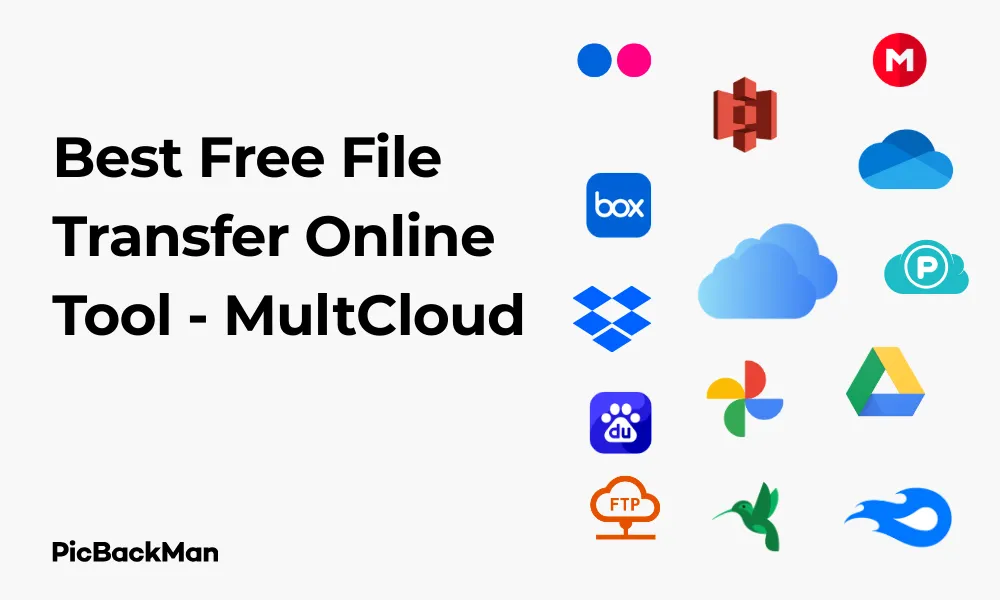
One of MultCloud's biggest strengths is the wide range of cloud services it supports. Here's a list of the major platforms you can connect:
- Google Drive
- Dropbox
- OneDrive
- Box
- Amazon S3
- FTP
- Google Photos
- Mega
- iCloud
- pCloud
- Flickr
- Baidu
- SugarSync
- MediaFire
- And many more!
With over 30 cloud services supported, MultCloud likely covers all the platforms you currently use.
Key Features of MultCloud
Let's explore the main features that make MultCloud stand out as a top file transfer online tool:
1. Cloud Transfer
This is MultCloud's core functionality. You can move files from one cloud to another directly, without having to download them to your device first. This saves time, bandwidth, and storage space on your local device.
The transfer happens in the cloud, which means you can close your browser or turn off your computer, and MultCloud will continue working in the background. This is particularly useful for large file transfers that might take hours to complete.
2. Cloud Sync
Beyond simple transfers, MultCloud offers various sync options:
- One-way sync: Updates files at the destination when the source changes
- Two-way sync: Keeps both locations identical by updating changes in either direction
- Real-time sync: Changes are synchronized as they happen
- Scheduled sync: Set specific times for synchronization to occur
These options give you flexibility in how you manage your files across different cloud platforms.
3. Cloud Explorer
MultCloud provides a unified file explorer that lets you browse, preview, and manage files across all your cloud accounts. You can:
- Upload, download, copy, move, and delete files
- Create new folders
- Rename files and folders
- Preview documents, images, and videos
- Share files with others
This unified interface eliminates the need to switch between different cloud apps or websites.
4. Scheduled Transfers
You can set up automatic transfers to run daily, weekly, or monthly. This is perfect for:
- Regular backups between cloud services
- Syncing work files to a personal account
- Keeping shared folders updated
Once configured, these tasks run automatically without requiring your input.
5. File Filtering
MultCloud allows you to filter files during transfers based on:
- File types (documents, images, videos, etc.)
- File size
- Creation or modification date
- Custom file name patterns
This helps you transfer only the files you need, saving time and storage space.
How to Use MultCloud: Step-by-Step Guide
Now that you understand what MultCloud offers, let's go through how to use it:
Step 1: Create a MultCloud Account
- Visit the MultCloud website (www.multcloud.com)
- Click on “Sign Up” in the top-right corner
- Enter your email address and create a password
- Verify your email address by clicking the link sent to your inbox
You can also try MultCloud without creating an account by clicking "Experience without signing up," but your session will expire after a few hours.
Step 2: Add Your Cloud Accounts
- Click on “Add Clouds” in the MultCloud dashboard
- Select the cloud service you want to add from the list
- Follow the authorization process (you'll be redirected to log in to that service)
- Grant MultCloud permission to access your account
- Repeat for each cloud service you want to connect
MultCloud uses OAuth for authorization, which means it doesn't store your cloud service passwords.
Step 3: Transfer Files Between Clouds
- Click on "Cloud Transfer" in the MultCloud menu
- Select the source cloud and folder
- Select the destination cloud and folder
- Choose your transfer options (filter files, email notification, etc.)
- Click "Transfer Now" to start the transfer
Step 4: Sync Clouds
- Click on “Cloud Sync” in the MultCloud menu
- Select the source and destination
- Choose your sync method (one-way, two-way, etc.)
- Set up a schedule if desired
- Click "Sync Now" to start the sync process
Step 5: Manage Files
To manage files directly in MultCloud:
- Click on any of your added cloud services in the left sidebar
- Browse through folders using the file explorer
- Use right-click menu options or the toolbar to perform actions like copy, move, delete, etc.
- Drag and drop files between different cloud services
MultCloud Free vs. Premium Plans
MultCloud offers both free and paid plans. Here's how they compare:
Free Plan Features:
- Connect unlimited cloud accounts
- Basic file transfer and sync
- 30GB of data traffic per month
- Normal transfer speed
- Basic scheduling options
Premium Plan Features:
- Everything in the free plan
- Up to 10TB of data traffic per month (depending on level)
- 9x faster transfer speeds
- Advanced scheduling options
- Filter files during transfer
- Real-time sync
- Priority support
For most personal users, the free plan offers enough functionality to be useful. However, if you regularly transfer large amounts of data or need the advanced features, the premium plans are reasonably priced.
Tips for Getting the Most Out of MultCloud
1. Set Up Automated Backups
Use the scheduled transfer feature to automatically back up important folders from one cloud to another. For example, you could back up your Google Drive documents to Dropbox weekly for redundancy.
2. Use Filters Effectively
When transferring files, use filters to include only what you need. For example, you might only want to transfer documents (.doc, .pdf, etc.) but not image files.
3. Take Advantage of the Mobile Web Interface
MultCloud works through any web browser, including mobile browsers. This means you can manage your cloud transfers even when you're away from your computer.
4. Combine MultCloud with Other Tools
MultCloud works well alongside other productivity tools. For example, you could use it with file compression tools to manage large transfers more efficiently.
5. Use Cloud Transfer for Migration
If you're switching from one cloud service to another, MultCloud can transfer all your files without downloading and re-uploading them, saving you significant time and bandwidth.
MultCloud Security: Is It Safe?
When using any third-party service to access your cloud accounts, security is a valid concern. Here's what you should know about MultCloud's security:
- MultCloud uses OAuth authentication, which means it doesn't store your cloud service passwords
- All data transfers are encrypted with 256-bit SSL encryption
- Your authorization tokens are encrypted before being stored
- MultCloud doesn't store your actual files - it only facilitates transfers between services
- You can revoke MultCloud's access to your cloud accounts at any time
While no online service can guarantee 100% security, MultCloud takes reasonable precautions to protect your data and privacy.
Common Use Cases for MultCloud
Personal Use
- Consolidating files scattered across different cloud services
- Backing up important documents from one cloud to another
- Sharing files with friends or family without downloading and re-uploading
- Managing photos across different cloud photo services
Professional Use
- Transferring client files between different storage platforms
- Maintaining synchronized work files across personal and business accounts
- Collaborating on projects stored in different cloud services
- Creating automated backup systems for important business documents
Educational Use
- Managing research materials across different cloud platforms
- Sharing educational resources between different institutional accounts
- Backing up student work and assignments
Limitations of MultCloud
While MultCloud is an excellent tool, it does have some limitations you should be aware of:
- The free version has limited monthly data transfer (30GB)
- Transfer speeds on the free plan can be slow for very large files
- Some advanced features are only available on paid plans
- There's no dedicated desktop or mobile app (web-based only)
- Some less common cloud services might not be supported
These limitations are generally minor compared to the benefits MultCloud offers, especially considering that the free version is quite functional.
Alternatives to MultCloud
While MultCloud is one of the best options for cloud-to-cloud transfers, there are alternatives worth considering:
cloudHQ
cloudHQ offers similar functionality to MultCloud, with a focus on synchronization between cloud services. It supports most major cloud platforms and offers both free and premium plans.
Otixo
Otixo provides a unified interface for multiple cloud services, allowing you to manage files across platforms. It has a slightly different focus than MultCloud, with emphasis on collaboration features.
Cloudsfer
Cloudsfer specializes in migrating data between cloud services. It's particularly useful for one-time transfers when switching from one platform to another.
Rclone
For more technical users, Rclone is a command-line program that can sync files and directories to and from various cloud storage providers. It's free and open-source but requires some technical knowledge to use effectively.
How MultCloud Compares to Manual Transfers
Let's compare using MultCloud to the traditional method of manually downloading and re-uploading files:
Time Savings
With manual transfers, you need to download files to your device and then upload them elsewhere. This process can take hours for large files or folders. MultCloud performs direct cloud-to-cloud transfers, often completing the same task in a fraction of the time.
Bandwidth Usage
Manual transfers consume your internet bandwidth twice - once for downloading and once for uploading. MultCloud transfers happen in the cloud, using none of your personal bandwidth after the initial setup.
Storage Requirements
To manually transfer files, you need enough free space on your local device to store the downloaded files temporarily. MultCloud requires no local storage space since files move directly between cloud services.
Convenience
Manual transfers require you to be actively involved throughout the process. MultCloud can run transfers in the background, even when your computer is off, and can be scheduled to run automatically.
Real-World Applications
Case Study 1: Photographer Managing Multiple Portfolios
A professional photographer uses Google Drive for client work, Dropbox for personal projects, and OneDrive for backup. Before MultCloud, they spent hours each week moving files between these services. Now, they've set up automated syncs that keep their portfolios organized across all platforms without manual intervention.
Case Study 2: Small Business Document Management
A small accounting firm needs to maintain client documents across multiple cloud platforms due to different client preferences. Using MultCloud, they've created a system where documents are automatically synchronized between services, ensuring all team members have access to the latest versions regardless of which platform they're using.
Case Study 3: Academic Research Team
A research team at a university uses different cloud services based on departmental requirements. MultCloud allows them to share and sync research materials across these platforms, facilitating collaboration without forcing everyone to standardize on a single cloud service.
Quick Tip to ensure your videos never go missing
Videos are precious memories and all of us never want to lose them to hard disk crashes or missing drives. PicBackMan is the easiest and simplest way to keep your videos safely backed up in one or more online accounts.

Simply download PicBackMan (it's free!) , register your account, connect to your online store and tell PicBackMan where your videos are - PicBackMan does the rest, automatically. It bulk uploads all videos and keeps looking for new ones and uploads those too. You don't have to ever touch it.
Conclusion
MultCloud stands out as one of the best free file transfer online tools available today. Its ability to connect multiple cloud storage services and facilitate direct transfers between them saves time, bandwidth, and frustration. Whether you're a casual user with a couple of cloud accounts or a professional managing extensive cloud storage systems, MultCloud offers valuable functionality that simplifies your digital life.
The free version provides enough features for most users to get significant benefits, while the premium plans offer enhanced capabilities for those with more demanding needs. The web-based interface makes it accessible from any device with a browser, and the security measures in place help protect your data during transfers.
If you're tired of the download-upload cycle when moving files between cloud services, MultCloud is definitely worth trying. Its intuitive interface and powerful features make it a standout choice in the world of cloud management tools.
Frequently Asked Questions (FAQs)
1. Is MultCloud completely free to use?
MultCloud offers a free plan that allows you to connect unlimited cloud accounts and transfer up to 30GB of data per month. For more extensive usage, premium plans are available with higher data transfer limits and additional features like faster transfer speeds and advanced scheduling options.
2. Does MultCloud store my cloud service passwords?
No, MultCloud uses OAuth authentication, which means you log in directly with your cloud service providers. MultCloud receives an authorization token but never sees or stores your actual passwords. This approach is much more secure than services that require you to provide your passwords directly.
3. Can I schedule recurring transfers with the free version of MultCloud?
Yes, the free version of MultCloud does allow for basic scheduled transfers. You can set up transfers to run daily, weekly, or monthly at specific times. However, the premium versions offer more advanced scheduling options and additional features like real-time sync.
4. What happens if my transfer exceeds the monthly data limit?
If you reach your monthly data transfer limit on the free plan (30GB), any ongoing or new transfers will be paused until the next month when your allocation refreshes. You can either wait for the reset or upgrade to a premium plan for higher data transfer limits if you need to continue transferring files immediately.
5. Can I use MultCloud on my smartphone or tablet?
Yes, MultCloud is a web-based service that works through your browser, so you can access it from any device with internet access, including smartphones and tablets. While there isn't a dedicated mobile app, the website is responsive and functions well on mobile browsers, allowing you to manage your cloud transfers on the go.
























